
In this episode of my LibreOffice Calc & Python Programming tutorial, we are going to write our first Python Macro. It will write ‘Hello World’ in cell A1 of a LibreOffice Calc document. How exciting is that!?!
Here is the plan for this part 2 of the tutorial:
- Get your workflow right: deciding between your macro embedded in the file or saved in a macro repository.
- First line of code and writing “Hello World!” in Cell A1.
- Assigning the macro to a LibreOffice Control Button.
Get your workflow right (Back to top)
With the APSO add-on (see previous article) you can embed your macro within the LibreOffice File. This can be useful when you want to send your file with the Python Macro. One downside if you do that is that the Python macro is not accessible outside of the LibreOffice file. So you’ll need to open the LibreOffice file and open the Python Macro organiser in order to edit the Python program. There are alternatives to embedding the Python program. You can place it in an organized directory while still using APSO. This allows you to re-use it for any other LibreOffice document. You can also edit the program without opening the LibreOffice document if you open it from the relevant folder. If you want to send your LibreOffice Document to someone, there is a trade-off. You will also need to send the Python macro.
I am in favor of keeping my programs in a tidy manner. This approach allows me to re-use them across many different files. However, the choice is entirely up to you.
To illustrate these 2 cases, let’s have a look at an example:
I have a file called “HelloWorld.ods” and two Python files: the first one is called “HelloWorld.py” and the other file is called “Testing.py”. The first python file is embedded in the LibreOffice file, the second is in the shared Python Scripts directory.
In the first case scenario, after opening HelloWorld.ods, I can go to the Python Script Organizer, in Tools>Macro>Organize Python Scripts (shortcut Alt+Shift+F11) from the APSO extension. Alternatively I can use the LibreOffice Standard Macro Organiser in Tools>Macro>Organise Macros>Python….
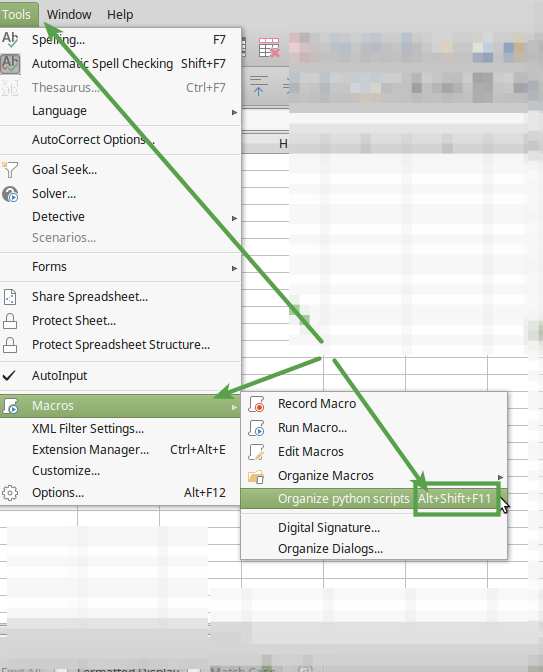
In the Python Scripts Organiser you will see that your Python Macro is listed within the LibreOffice File’s name.

When you choose to edit the Python Macro, select ‘Menu>Edit’ from the ‘Python scripts’ window. The edited file’s path is temporary. It is only used for the time of editing this Python program.
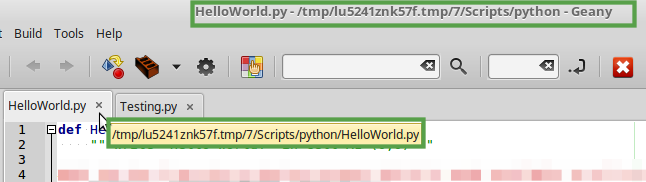
So where is the Python Script saved on your hard drive?
As I wrote earlier, it’s embedded in the LibreOffice File. If you don’t believe me, here is a trick to find out:
If I rename my ‘HelloWorld.ods’ in ‘HelloWorld.zip’ I can then unzip it to see the archived compressed files and folders that constitute the LibreOffice file itself (with e.g. Archive Manager on Linux, winzip on Windows, or Archive Utility on Mac). In the list of folders I can then spot a folder called ‘Scripts’, then a sub-folder called ‘python’, and OH SURPRISE! the python script is there!
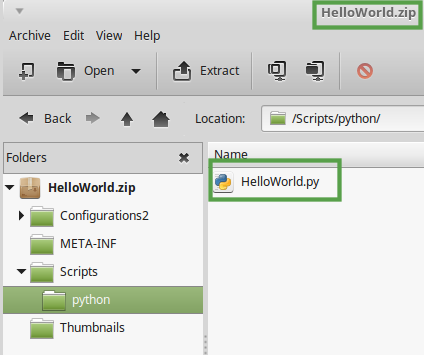
If you want to do that too, when you’re done don’t forget to rename the file back with its ‘.ods’ extension.
In the second case scenario,we are saving our Python script our Python script ‘Testing.py’ is not listed in the Macro manager within the LibreOffice File, but this time I created it as part of my Library ‘MyPythonLibrary’ within another Library called ‘Tutorial’.

And this time if I edit ‘Testing’, I can see the path is not a temporary one and I can access it even when LibreOffice is closed.
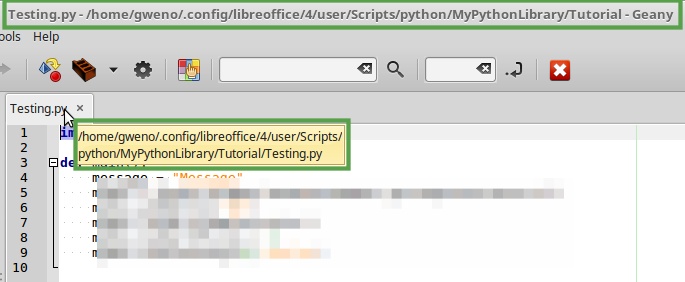
In fact your Python programs can be directly accessed on your computer at the following location:
For Linux:
/home/<user name>/.config/libreoffice/4/user/Scripts/python
(to see folder ‘.config’ you need to ‘Show hidden files’ , the shortcut CTRL+h).
For Windows:
C:\Users\<user_name>\AppData\Roaming\LibreOffice\4\Scripts\python
For Mac:
(I think it’s)/Users/<user name>/Library/Application Support/LibreOffice/4/user\Scripts\python
(Please let me know in a comment if you know for sure what the folder is for Mac OS).
First line of code! (Back to top)
I know you can’t wait anymore! So let’s write our first line of code in Python, within a LibreOffice Calc Document.
So after creating a new Calc document, go in the Macro manager (if you have installed the APSO extension: ALT+Shift+F11), then as explained earlier in this lesson you can have your program either in calc document or in a library outside the document. To do so, choose between ‘My Macros’, ‘LibreOffice Macros’ or the name of the document itself.
I do prefer saving my python macros in the ‘My Macros’ Library.
You can also create sub-folders, called libraries, or directly create your program by choosing ‘Create Module’ in the ‘Menu’.
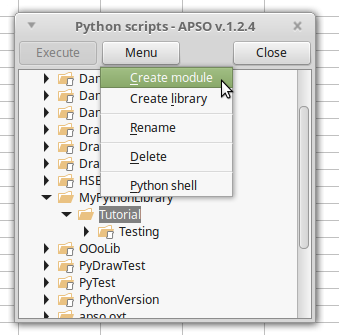
So go ahead and create a Module, name it “HelloWorld”, then once the module is listed and selected, click again on ‘Menu’ and choose ‘edit’.
And then you get either a default editor or the one you have linked with APSO to pop up with a new program that content nothing but a couple of lines like these:

The first line is a comment.
A comment in a program is a line that is not processed when the program is executed. So it’s not a line of code, it is usually to help the person who is going to read your program (most of the time, yourself) to understand what the following code is aiming to do.
So to write comments in your Python programs simply add a ‘#’ at the start of the line.
Don’t worry about the second line, in fact you can delete these two lines for now.
Instead you could like me write your name, the date and what the program is for:
# Created by Gweno 16/08/2019 for tutolibro.tech
# This program displays 'Hello World!" in cell A1 of the
# current Calc document.
Then Finally here is the code for writing “Hello World!” in cell A1:
# Created by Gweno 16/08/2019 for tutolibro.tech
# This program displays 'Hello World!" in cell A1 of the
# current Calc document.

def HelloWorld():
    """Write 'Hello World!' in Cell A1"""

# get the doc from the scripting context
# which is made available to all scripts
    desktop = XSCRIPTCONTEXT.getDesktop()
    model = desktop.getCurrentComponent()

# access the active sheet
    active_sheet = model.CurrentController.ActiveSheet

# write 'Hello World' in A1
    active_sheet.getCellRangeByName("A1").String = "Hello World!"
You can either copy this block of code above or better type it manually yourself. Typing the code yourself will take longer but it’s the best way to remember a new language.
When you type it make sure that you leave 4 empty spaces to indent the lines that are not starting at the beginning of their lines, like: desktop = XSCRIPTCONTEXT.getDesktop()
If you don’t do that it will create an error because the Python interpreter will not recognise the line as part of the function define by:def HelloWorld():
So the instruction ‘def’ is to ‘define a function’. A function is a set of written instructions that can be run on its own or ‘called’ by other functions to be executed.
Our function here is called ‘HelloWorld’ and the part between parenthesis ‘()’ is where you write the arguments to be used by the function. In our case we are not ‘passing’ any argument to the function ‘HelloWorld’ for now, that is why we have nothing within the parenthesis ‘()’.
You need to know that when we will assign our macro to a button we will need to pass a specific argument for our macro to work when we press the button.

Explanations:
Lines 1,2,3,8,9,13,16: these lines start with a ‘#’ so they are comments.
Lines 4,7,12,15,18: these empty lines are only for making the program easier to read,by separating the different set of instructions within the program. The Python interpreter does not need them but these empty lines make the code more readable for us.
Line 5:def HelloWorld():
Define a new function called ‘HelloWorld’ that has no arguments.
The ‘:’ at the end is essential, it’s to say that what is following is the actual code written for this function. And every line that follow this function’s 1st line should start with 4 spaces.
The function finishes when either there is nothing after, or when a new line starts from the beginning with no space to start with (excluding comment lines).
Line 6: """Write 'Hello World!' in Cell A1"""
This line is simply a description of the function, it starts and ends with 3 quotation marks. It is not really useful for us right now but it is a good practice to have a short description for each of your function. It’s different from a comment because this description can be displayed from outside of the program as a ‘help’ note.
Line 10: desktop = XSCRIPTCONTEXT.getDesktop()
This line is what allows us to use Python language to manipulate LibreOffice’s components. It is a bit complicated to explained exactly what this line does but in short:
We define ‘desktop’ to hold the ‘XSCRIPTCONTEXT‘ interface provided by LibreOffice for our scripts (programs). The ‘getDesktop()’ function is used to obtain a reference for our scripts to operate on. (It is not a reference to a computer desktop!). (Click on the links above to read more in my ‘bitesize’ section)
Line 11: model = desktop.getCurrentComponent()
In the same way we define here ‘model’ to be the current component of ‘desktop’, so effectively we are referencing to the current document open, which should be a Calc document.
Line 14: active_sheet = model.CurrentController.ActiveSheet
Here we are defining ‘active_sheet’ to be the current spreadsheet you are looking at.
Line 17: active_sheet.getCellRangeByName("A1").String = "Hello World!"
Finally! Now that we have a reference to the current LibreOffice Context, the current LibreOffice Calc Document (component) and the current spreadsheet, we can access the cell ‘A1’ from that current spreadsheet and assign to its ‘String’ parameter the text “Hello World!”.
Assign the macro to a LibreOffice Control Button. (Back to top)
You will quickly realise when you write a macro within libreOffice that it’s not really convenient to execute them through the Macro Manager because you need to access that menu and it takes a few clicks to do so (Quickest way to access the APSO Macro manager being [Alt] + [Shift] + [F11]). It is easy to create a button on your spreadsheet and to assign it to your macro and then when you’ll click on that button it will execute the macro.
So first we’ll create a button on the spreadsheet then we’ll assign the python macro to this button.
Create a button:
Simply by clicking on Menu ‘Insert>Form Controls>Push Button’:
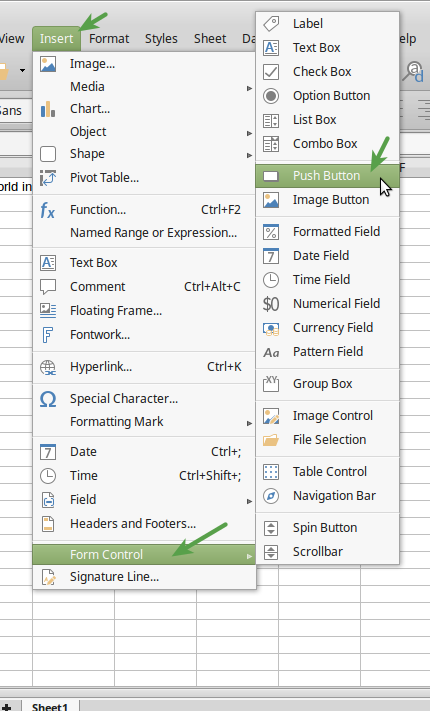
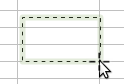
Then once you have the little cross to insert the button, just click for upper left corner of the button, then hold and release where you want the bottom right corner of the button.
Assign the python macro:
Once you have the button displayed, right click on it and select ‘Control…’

Then in the window ‘Properties’ select the ‘Events’ tab, scroll down a bit to find in the list of events the one called ‘Mouse button pressed’. On the right of this ‘Mouse button pressed’ entry click on the button ‘[…]’.
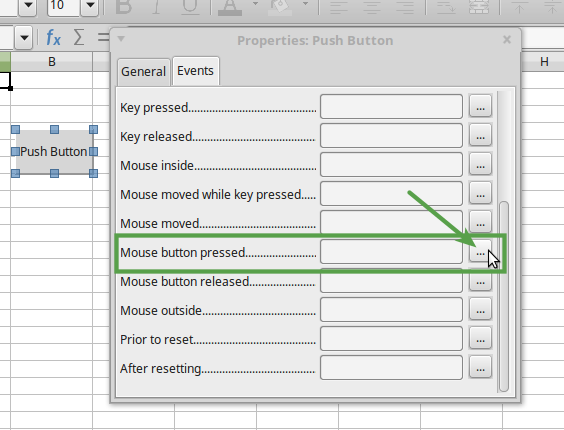
A window named “Assign Action’ pops up, click on the button ‘[Macro]’ on the right hand side of this window.
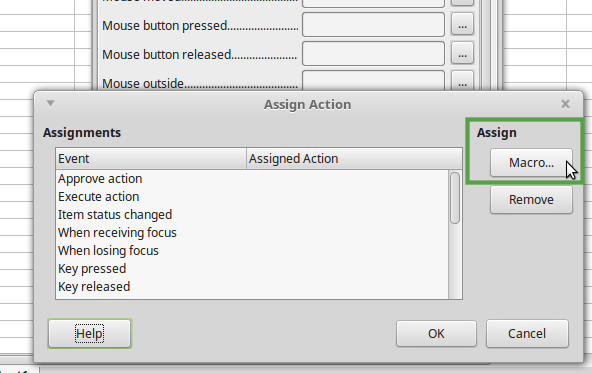
You should then get the ‘Macro Selector’ with your Macro Libraries. Simply go to the library where your macro is saved and select the macro ‘HelloWorld’,then press ‘OK’.

Then ‘OK’ again in ‘Assign Macro’ window, than close the ‘Properties’ window.
Last thing to do is to come out the ‘Design’ mode to be able to click on the button, do that by going to ‘Tools>Forms>Design Mode’.

And now when you click on the button… tada…
ERROR!

This is because to be able to work, the function HelloWorld need all information from LibreOffice Context in the form of an argument. So we need to pass the argument ‘*args’ in our function HelloWorld. So in your code in line 5 instead of:def HelloWorld():
You should have:def HelloWorld(*args):
Save your program again and then when you press on the button the cell A1 will display ‘Hello World!’ !!!
So there is the final version of the macro:
# Created by Gweno 16/08/2019 for tutolibro.tech
# This program displays 'Hello World!" in cell A1 of the
# current Calc document.

def HelloWorld(*args):
    """Write 'Hello World!' in Cell A1"""

# get the doc from the scripting context
# which is made available to all scripts
    desktop = XSCRIPTCONTEXT.getDesktop()
    model = desktop.getCurrentComponent()

# access the active sheet
    active_sheet = model.CurrentController.ActiveSheet

# write 'Hello World' in A1
    active_sheet.getCellRangeByName("A1").String = "Hello World!"
You can clone or download this code from gitHub here.
Good luck! and leave a comment if you are having problem to have this macro to work.
If you like this tutorial, you could buy me a coffee to help me continue writing add-free tutorials.
Thank you!
Related Posts
 Assign Your Python Macro to a Button in LibreOffice Calc
 LibreOffice Calc & Python Programming: Part 1 – Requirements
 Embedding vs. Storing Python Macros in LibreOffice
 Write ‘Hello World!” in LibreOffice Calc using Python
 LibreOffice Calc & Python: part 9 – Reverse the order of cells content from a cell range
 LibreOffice Calc & Python Programming: part 8 – From Python Tuple to Cells Range
Great tutorial of Python for LibreOffice Part#2 and thank you so much in advance for the upcoming parts !
Thanks for your comment Nukool!
Thank you so much. This is great to start the ball rolling.
I am trying to get into python scripting for LO but I find it very difficult
(programming micro-controllers is a piece of cake compared to this)
I’ve a couple of question…
3) How to get serial data (over a USB connected UART) into LO using python script?
It’s something I would love to do but my rate of learning how to achieve it is so slow. I’d pay 100 Euro’s to anyone that con do this (contact me for full details) but as nobody takes me up on this offer I plod around in circles.
Hi Michael. Thanks for your comment, very interesting question. Have you looked into the python ‘serial’ library? There is also pyusb and probably a few more. Not long ago I was actually looking into data transfer through usb with python using a raspberry pi but I quickly realized that I would need to spend quite some time to get to it. I wish I could offer my help on this but not right now, sorry. Good luck with your project. Thank you
Thanks for the series on LO and Python. I have a query regarding
creating an embedded Python macro in a Calc (.ods) spreadsheet.
The article states
“I have 1 file called “HelloWorld.ods” and 2 Python files 1 called “HelloWorld.py” and 1 called “Testing.py”. The first python file is embedded in the LibreOffice file, the second is in the shared Python Scripts directory.”
There is no mention of how to create and embed a macro from scratch using APSO.
Does APSO not open an empty file for you to add code? I can create a module
in APSO but can’t see how to create a macro within APSO.
Hi Paul, and very sorry for very late answer. I hope you found our answer elsewhere. Life is so busy these days I had to step away from this website for a long while.
To answer your question: APSO is just an console, meaning just an interface to run python commands directly and unlike consoles like IDLE, you cannot create and edit files directly from the APSO console. So you need an IDE, I suggested ‘GEANY’ but visual studio code, visual studio, codeblock, eclipse and so many others can also be used. You just need to set the path of the IDE program in the Extension manager’s option for APSO (Tools/Extension Manager in LibreOffice). Once you have your ASPO extension linked with an IDE you can ‘Edit’ your Module.
on Mac OS 12.3 neither Finder nor Xcode lets the user access the user’s Library folder. I used BBEdit to get to the location for the stored python script.
/Users/userName/Library/Application Support/LibreOffice/4/user/Scripts/python/MyPythonLibrary/Tutorial/Testing.py
I could not find how to tell APSO 1.3 how to use BBEdit as a editor. Any Guidance?
Thanks for a great Tutorial!
Hi Neil, sorry for late answer. And thanks for nice comments.
To answer your question. If APSO is installed, you should be able to access its options in LibreOffice if you go to ‘Tools/Extension Manager’. Then select APSO, click on the ‘Options’ Button. You should see a box to enter the path of your BBedit editor executable.
I hope it’ll help. Many thanks
Wonderful tutorial!!! I started using your tutorial (and the YouTube videos from Rafael Lima), but I noticed that I have problems when I try to embed the python script inside the spreadsheet (as opposed to an *outside* (non-embedded)). After I make my edit I don’t see the immediate result, unless I close and re-open. Is there a smarter workaround? I found (what I think) is an existing bug in LO calc — https://bugs.documentfoundation.org/show_bug.cgi?id=105609
Have you seen this issue and how did you work around this. Again a big THANKS for these tutorials. Cheers!
Hi Ken, thank you for your kind words. And thank you for your remark about the issue with updating code from an embedded python file. It seems there was a patch and I can see you asked for help to LO foundation too. I have no workaround apart from reloading, for example when the program is attached to a button and to be honest I used very rarely embedded code as I like keeping all scripts together. It looks like they had some positive results with the patch but it has been abandoned. Hopefully your message will get someone to get the patch fully verified and pushed. Sorry if I cannot more helpful with this bug.
Hi, I added Sublime Text as editor in Calc but when I click on edit to access the “HelloWorld” file it keeps asking if I want to install Sublime Text again.
Thanks Miguel for your question.I supposed that you are using Sublime Text and trying to edit your script via the APSO extension for LibreOffice?
Have you got the correct path in the Editor path for the APSO Extension (Tools/Extension Manager)?
Thanks
“To answer your question: APSO is just an console, meaning just an interface to run python commands directly and unlike consoles like IDLE, you cannot create and edit files directly from the APSO console. So you need an IDE, I suggested ‘GEANY’ but visual studio code, visual studio, codeblock, eclipse and so many others can also be used. You just need to set the path of the IDE program in the Extension manager’s option for APSO (Tools/Extension Manager in LibreOffice).”
Thank you so much for your tutorial…it is brilliant…I have been faffing around trying to find out how to start…but all the information/tutorials are far too advanced! Keep it up!
My question is….what is the Geany executable called? I cannot seem to find anything obvious. I am on Ubuntu 23.04 and Libreoffice 7.5.
Hi Dun and thank you for your comment. The executable for Geany with full path, on linux ubuntu is probalby ‘/usr/local/bin/geany’ if you have installed it using apt. That is what you should type in the ‘Editor’ setting for the APSO add-on. If the geany exectuable is not in there, you can find it with the command ‘which geany’ in a terminal.
If you installed it using flatpak, geany should be listed in ‘/var/lib/flatpak/app’. However I am not sure what you should path you should use for a flatpak version in the APSO editor setting. Let me know if that is your case. Take care
Thank you so much….this tutorial is the bomb! Is there a tip jar?
Your thank you is already a reward for me. You can buy me a coffee there https://bmc.link/tutolibro.
Thank you Dun.