

Assign the macro to a LibreOffice Control Button.
When you write a macro within libreOffice, you will quickly realise something. It’s not really convenient to execute macros through the Macro Manager. This is because you need to access that menu, and it takes a few clicks to do so. (Quickest way to access the APSO Macro manager being [Alt] + [Shift] + [F11]). Creating a button on your spreadsheet is easy. You can assign this button to your macro. When you click on the button, it will execute the macro.
So first we’ll Switch to Design Mode. This allows us to create a button on the spreadsheet. Then, we’ll assign the python macro to this button.
Switch to Design Mode: (Back to Top)
The first step is to set the document to ‘Design Mode’ . Select ‘Design Mode’ From ‘Menu Tools/Forms/Design Mode’.

Create a button: (Back to Top)
Then simply by clicking on Menu ‘Insert>Form Controls>Push Button’:

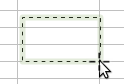
Once you have the little cross to insert the button, click for the button’s upper left corner. Then hold and release where you want the bottom right corner of the button.
Assign the python macro: (Back to Top)
Once you have the button displayed, right click on it and select ‘Control…’

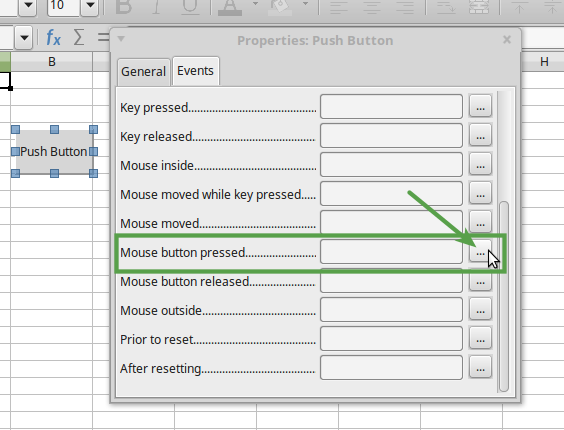
Then in the window ‘Properties’ select the ‘Events’ tab, scroll down a bit to find in the list of events the one called ‘Mouse button pressed’. On the right of this ‘Mouse button pressed’ entry click on the button ‘[…]’.
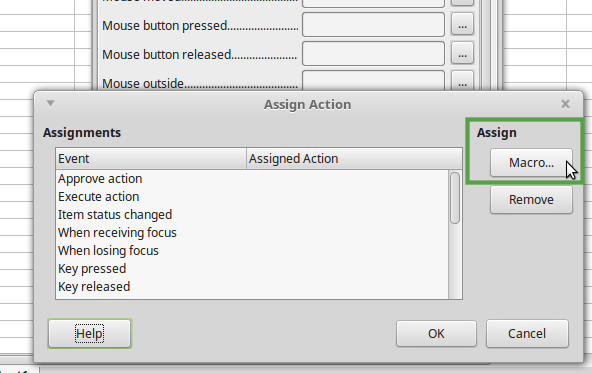
A window named “Assign Action’ pops up, click on the button ‘[Macro]’ on the right hand side of this window.
You should then get the ‘Macro Selector’ with your Macro Libraries. Simply go to the library where your macro is saved and select the macro ‘HelloWorld’,then press ‘OK’.

Then ‘OK’ again in ‘Assign Macro’ window, than close the ‘Properties’ window.
The last thing to do is exit the ‘Design’ mode. This allows you to click on the button. Do that by going to ‘Tools>Forms>Design Mode’.

And now when you click on the button… tada…
If you get this ERROR!

The function HelloWorld requires all information from LibreOffice Context to work. This information is needed in the form of an argument. So we need to pass the argument ‘*args’ in your function called by the Push Button.
For example in the program HelloWorld done in a previous post, in your code instead of:def HelloWorld():
You should have:def HelloWorld(*args):
Save your program again and then when you press on the button the cell A1 will display ‘Hello World!’ !!!
So there is the final version of the macro:
# Created by Gweno 16/08/2019 for tutolibro.tech
# This program displays 'Hello World!" in cell A1 of the
# current Calc document.

def HelloWorld(*args):
    """Write 'Hello World!' in Cell A1"""

# get the doc from the scripting context
# which is made available to all scripts
    desktop = XSCRIPTCONTEXT.getDesktop()
    model = desktop.getCurrentComponent()

# access the active sheet
    active_sheet = model.CurrentController.ActiveSheet

# write 'Hello World' in A1
    active_sheet.getCellRangeByName("A1").String = "Hello World!"
You can clone or download this code from gitHub here.
Good luck! and leave a comment if you are having problem to have this macro to work.
If you like this tutorial, you could buy me a coffee to help me continue writing add-free tutorials.
Thank you!
Related Posts
 LibreOffice Calc & Python Programming: Part 1 – Requirements
 Embedding vs. Storing Python Macros in LibreOffice
 Write ‘Hello World!” in LibreOffice Calc using Python
- LibreOffice Calc & Python Programming: Part 2 – Hello World
 LibreOffice Calc & Python: part 9 – Reverse the order of cells content from a cell range
 LibreOffice Calc & Python Programming: part 8 – From Python Tuple to Cells Range